
How to Import Spotify Playlist to Youtify Step by Step Guide
Music lovers today want freedom when it comes to streaming platforms. While Spotify is one of the biggest players in the industry, many users are now exploring alternatives like Youtify mod APK because of its wide range of customization options, high-quality playback, and ad-free experience.
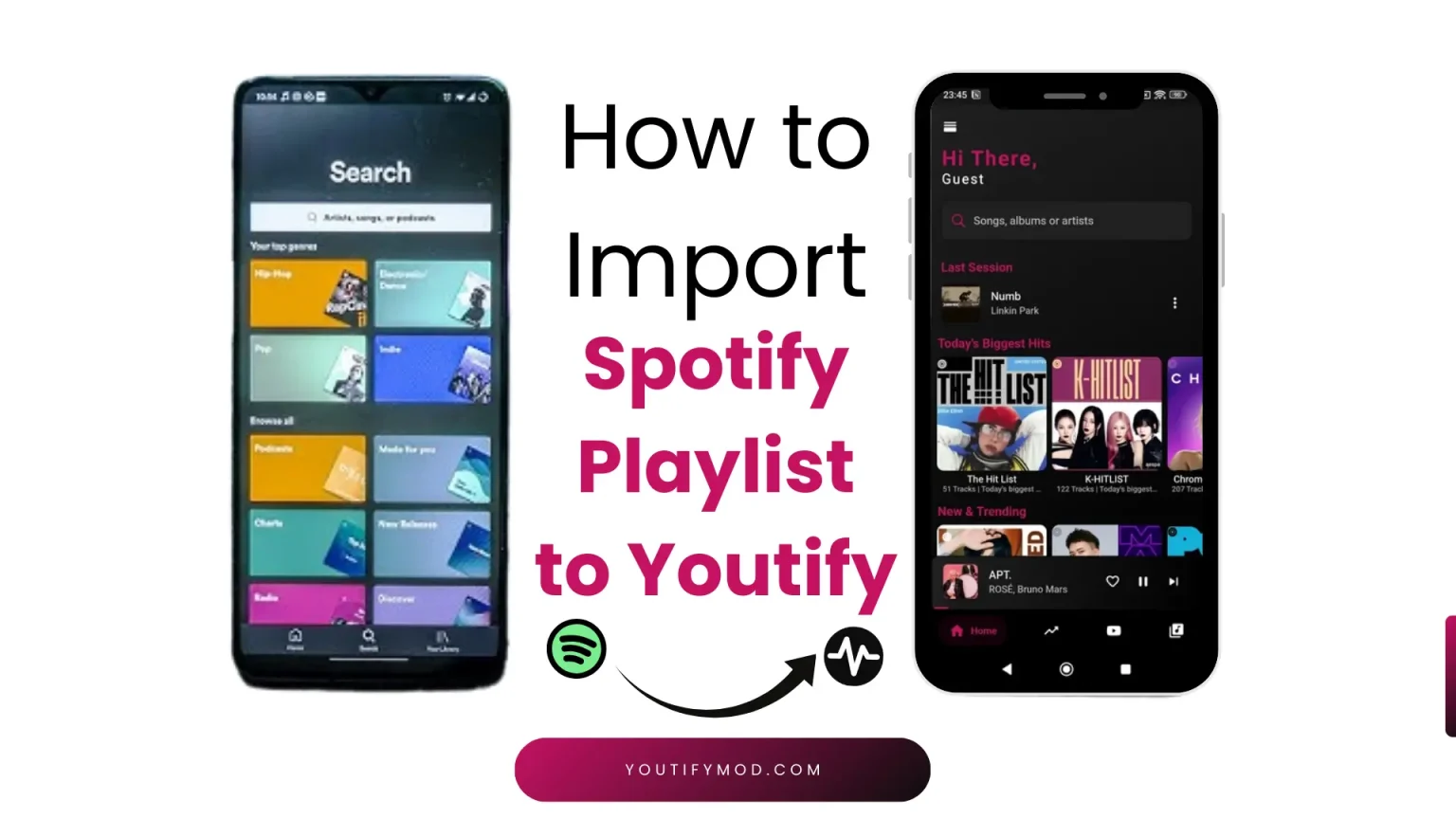
One of the most common questions new users ask is how to import Spotify playlist to Youtify? After all, nobody wants to manually search and rebuild dozens of playlists. If you’ve spent years curating your favorite tracks on Spotify, moving them to Youtify quickly and efficiently becomes essential.In this guide, we’ll cover whether it’s possible to import playlists directly, which tools can help you, and a detailed step-by-step process for Spotify to Youtify playlist transfer.
Can You Import Spotify Playlist to Youtify?
The short answer is Yes but there is no direct one-click option inside Youtify to import playlists from Spotify. Unlike Spotify, which has built-in integrations with some platforms, Youtify works differently. It pulls content mainly from YouTube and YouTube Music.
That means if you want to transfer playlist from Spotify to Youtify, you’ll need a workaround. The most reliable method is:
- Transfer your playlist from Spotify → YouTube.
- Then bring that playlist from YouTube → Youtify app.
This may sound complicated, but with the right tools, the process is smooth, fast, and doesn’t require technical knowledge. That’s why many users prefer using youtify for windows to make the experience even easier.
Step by Step Guide on How to Transfer Spotify Playlist to Youtify
If you’re wondering how to import playlist from Spotify to Youtify, follow these steps:
Step 1: Export Spotify Playlist Using a Transfer Tool
Start by selecting a third-party transfer service that supports both Spotify and YouTube. Popular options include TuneMyMusic, Soundiiz, and FreeYourMusic.
- Log in to your chosen service.
- Connect your Spotify account and select the playlists you want to export.
- Choose YouTube or YouTube Music as the destination platform.
These tools will automatically map and copy your Spotify tracks to YouTube.
Tip: For large playlists, FreeYourMusic or Soundiiz handle batch transfers more efficiently.
This step is crucial because Youtify can’t pull songs directly from Spotify. Instead, you first need to place them into YouTube, which Youtify supports.
Step 2: Transfer Playlist from Spotify to YouTube
Once you’ve connected both accounts, start the transfer. The tool will search for each song from your Spotify playlist and match it with the corresponding version available on YouTube.
- Wait for the process to finish (it may take a few minutes depending on the playlist size).
- Check your YouTube account afterward to make sure the playlists are visible.
At this point, you’ve successfully completed the first half of the Spotify to Youtify playlist transfer journey.
Step 3: Import Playlist from YouTube to Youtify App
Now comes the easy part.
- Open the Youtify app on your device.
- Log in and go to the Import/Library section (this can vary slightly depending on app version).
- Connect or allow access to your YouTube account.
- Once synced, your YouTube playlists (which now contain your Spotify songs) will appear inside Youtify.
From here, you can play, edit, or further customize them just as if they were native Youtify playlists. And that’s it! You’ve managed to import Spotify playlist to Youtify app without losing your carefully curated music.
Best Tools for Spotify to Youtify Playlist Transfer
There are multiple services that make transferring playlists simple. Here are the top three:
TuneMyMusic
- Supports over 20 platforms including Spotify, YouTube, Apple Music, and Tidal.
- Free version allows limited transfers, while the paid version offers unlimited sync.
- Clean interface, quick setup, and reliable mapping.
Soundiiz
- Browser-based service that works without installation.
- Supports playlist migration and auto-sync, meaning if you update your Spotify playlist later, it can automatically sync to YouTube.
- Offers both free and premium options.
FreeYourMusic
- Available on Android, iOS, Windows, and macOS.
- Supports bulk transfers, keeping the playlist order intact.
- Premium version unlocks unlimited transfers and advanced syncing.
When deciding which service to use, consider your playlist size, how often you update your music, and whether you prefer a free or paid option. Many users exploring Youtify for iOS free also take these factors into account.
Common Issues When Importing Spotify Playlists to Youtify
Although the process is fairly straightforward, users often encounter some issues:
- Missing songs: Not every track on Spotify exists on YouTube. Some may be unavailable, especially rare remixes or region-locked tracks.
- Duplicate tracks: Sometimes the transfer tool may map a song twice. Always double-check your playlists after transfer.
- Large playlists: If you’re transferring thousands of songs, free tools may struggle. Consider using paid options for smoother migration.
- Regional restrictions: Certain songs may not be accessible in your country via YouTube, which can affect their availability on Youtify.
By being aware of these issues in advance, you can better manage expectations and avoid surprises.
FAQ’s
Conclusion
If you’ve been searching for how to import Spotify playlist to Youtify, the answer lies in using third-party transfer tools. Although Youtify doesn’t directly support Spotify imports, you can easily achieve this by first moving your playlists to YouTube and then syncing them into Youtify. Many users of the Youtify old version apk also follow the same method for a smooth transfer.
By following the steps in this guide, exporting from Spotify, transferring to YouTube, and importing to Youtify, you can enjoy your curated music collection without starting from scratch.
Whether you use TuneMyMusic, Soundiiz, or FreeYourMusic, the process is simple and reliable. With just a little setup, you can complete your Spotify to Youtify playlist transfer and continue enjoying music on your favorite platform.
Now you know the exact process, so go ahead and bring your Spotify playlists into Youtify today!


